

Prep and recap
Therapy session prep
and a recap for your client
Session prep in Sessio brings back where you left off: the plan and agreements from the last session's note appear in the client's Portrait, on the recording screen and in Sio's chat. After the session Sessio drafts a recap for the client. You edit the text and send it yourself: Sessio sends nothing to the client.
Mac with Apple Silicon. The last-session reminder in the recording widget works only in the Mac app. Sessio is free during the beta.
Last session
While you record, Sio shows the date of the last session and how many items are waiting. In Sio's chat they open as a checklist.
Plan on screen
The "What's planned" card keeps the last session's items next to you. A tick is saved in that session's note too.
Recap for the client
The recap text is ready after the Summary. You edit it, copy it and send it yourself: Sessio sends nothing to the client.
How it looks
The "Before the session" block
in the client's Portrait
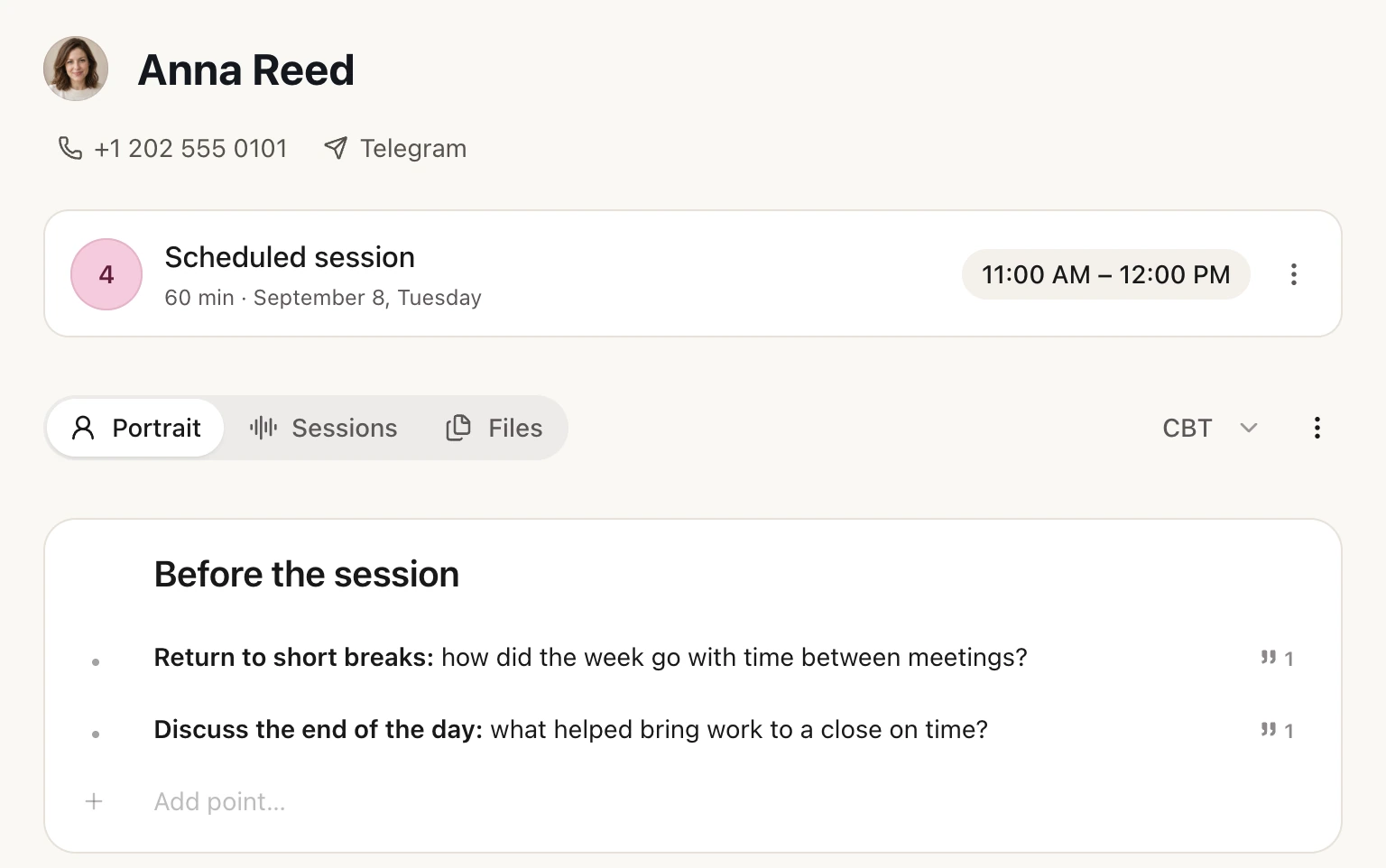
A fictional client: the next session and the Before the session block with two items, each with a source icon, and a line to add your own. The block is turned on with "Add other section" under the Portrait.
What the client sees
What you do in Sessio
and what the client gets
The recap lives in the "Share session" window, on the Client tab. It reaches the client only when you paste the text into your own messenger or email.
| In Sessio you | The client gets |
|---|---|
| Press "Client Recap" and read the text | Nothing. Sessio sends nothing until you send the text yourself. |
| Edit the text in the window | Your version. Edits are saved in Sessio and are still there when you reopen the recap. |
| Press "Copy recap" | Nothing yet: the text is on your clipboard, with bold and lists. The client gets it when you paste it into a messenger or an email. |
| See "Includes your client's real name" | A text with the client's name, so send it where you already talk to them. |
| Open the Summary, Transcript or Note | None of it goes to the client. The recap is a separate text that you send. |
How it works
From the last session
to a recap for the client
Prep comes from the note of the last session, the recap from the note of the one that just ended. A client's first session has no plan yet.
If the last note has no plan and no agreements, the widget stays quiet and the recording screen says there is no plan yet.
- Before the meeting. Open the client's Portrait. The "Agreements from last session" block is on by default and shows the open items from the last note. Add "Before the session" with "Add other section".
- Recording starts. A few seconds in, Sio in the recording widget shows the date of the last session and how many items are waiting. It names no one and shows no items, in case you share your screen. "Show" opens Sio's chat.
- During the session. In the chat the items sit under "For today" and "Agreed". Tick what you covered: the tick is saved in the last session's note and appears in the "What's planned" card on the recording screen.
- When the Summary is ready. Sio can offer the recap once you have read the note. The "Client Recap" button in the session header opens the "Share session" window on the Client tab.
- Edit and send. Read the text, change what you want and press "Copy recap". Paste it into your chat with the client: Sessio sends nothing itself.
Limits
What prep and recap do
and what they do not promise
Prep shows what is already in your notes. The recap stays a draft until you read it.
Do
- Show the plan and agreements from the last session's note in the Portrait, on the recording screen and in Sio's chat.
- Save a tick in the last session's note when you mark an item as covered.
- Draft a client recap from the session note, in the language of the session.
- Let you edit the recap, return to Sessio's version and copy it with bold and lists.
- Offer the recap after the Summary is ready. You can switch the offer off in Sio's menu.
Do not promise
- Send the recap to the client: there is no link, email or PDF for it. You copy the text and send it yourself.
- A plan for a first session or for a recording with no client: there is no last note to take it from.
- The last-session reminder outside the Mac app: the recording widget with Sio works only there.
- Remembering everything for you: prep shows what the notes contain, not everything said in the session.
- A recap without mistakes: read the whole text before sending, especially names and sensitive topics.
Checked against Sessio 0.35.0 and the app help, 1 November 2026.
Nearby
Prep and recap
rely on the notes of past sessions
Where to look next.
- Client portraitAll the blocks of the Portrait, where the agreements and "Before the session" come from.Read more
- Tests for clientsHow to send a client a test by a link and see the answers in the client's card (web version).Read more
- ScheduleThe calendar of your sessions and online booking in one schedule.Read more
Questions
Session prep and recap: answers
How to prepare for a session in Sessio, what the widget shows and what happens to the client recap.
How do I prepare for a therapy session in Sessio?
Open the client's Portrait: the "Agreements from last session" block shows the open items from the last note. When you start recording, Sio in the recording widget reminds you of the last session, and the "What's planned" card stays on the recording screen.
What does the last-session reminder in the recording widget show?
A few seconds after recording starts it shows the date of the last session and how many plan and agreement items are open. It does not name the client or show the items: "Show" opens them in Sio's chat. It works only in the Mac app, only if the last note has a plan or agreements, and stays quiet with "No suggestions" in Sio's menu.
Does Sessio send the recap to my client?
No. The recap opens in the "Share session" window on the Client tab. You edit it, press "Copy recap" and paste it into your own messenger or email. For the recap there is no link, email or PDF.
What is in the recap for the client?
Usually a short text based on the session note: the main points of the meeting, the agreements until the next session and what the client can lean on. It is written in the language of the session and includes the client's real name, so read it in full before sending.
Can I edit the recap before sending?
Yes. The text in the window is editable, with bold and lists. A badge "Edited by you" appears, your edits are saved, and "Revert to Sessio version" brings back the original draft.
How do I quickly check what we agreed last time?
Ask Sio: "What did we agree on last time?" The answer links to quotes from the transcripts, so you can check the source.


Prep and recap
Start with the next meeting
Install Sessio on a Mac with Apple Silicon and record a session: once its note is ready, the plan and agreements for the next meeting are collected from it. Sessio is free during the beta.