

Online booking
Online booking for therapists:
clients pick a slot, you confirm
Online booking in Sessio gives your clients a link where they choose a free time and send a request, with no account. Only a request you confirm takes the time: press Confirm in your schedule and the session is added. You set the working hours, session length, buffer and booking horizon yourself.
Set up in the Sessio app for Mac; clients only need a browser. Booking is off until you turn it on. Sessio is free during the beta.
A link, no account
The client opens your link in a browser, picks a time in their own time zone and leaves a name and an email.
You decide
A request is not a booking: it waits in your schedule and becomes a session only after you press Confirm.
Your hours
Clients see only free time, based on your working hours, buffer, horizon and what is already in your schedule.
How it looks
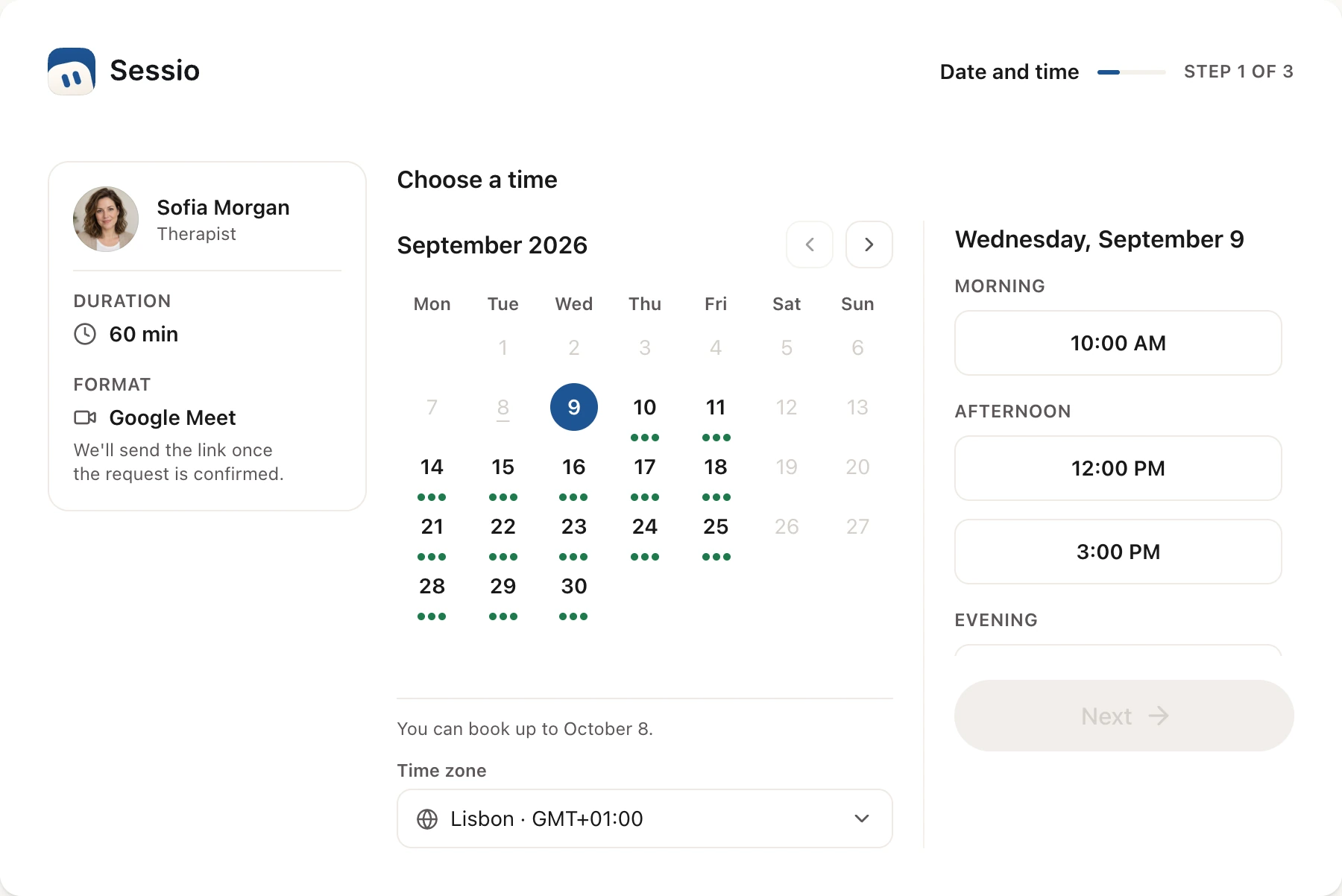
The booking page
as your client sees it
Step 1 of 3: a calendar with dots on the days that have free time, the times for the chosen day and the time zone. Next come Your details and Review.
Request statuses
What happens to a request
from sending to your answer
The client sees the status on the request page, linked from their email. Here is what each status means and what you do.
| Status | What happens |
|---|---|
| Waiting | The client sent a request. The time is not taken yet: in your schedule the request is marked "Needs confirmation", and you get an email. Until you answer, the client can cancel the request. |
| Confirmed | You pressed "Confirm". The session is added to your schedule, the client card is created or updated, and a Google Meet or Zoom link is created for the online session if you have connected it. The client gets an email with a calendar file. |
| Declined | You pressed "Decline". You can write a reason, which the client sees as you wrote it, and suggest up to three other times. The client gets an email and can pick a suggested time. |
| Cancelled | The client withdrew the request before you answered. The time was never taken, and both you and the client get an email. |
| Time has passed | You did not answer before the start time. The request closes by itself and can no longer be confirmed. |
How it works
From setup to your answer
in four steps
Everything is set up in the Sessio app for Mac. Your client only needs a browser.
When you confirm, Sessio checks the schedule again. If another appointment has taken that time in the meantime, the request cannot be confirmed: decline it and suggest another time.
- Turn it on. Open Settings → Schedule. On the "When I work" tab set your working hours, then on the "Online booking" tab press "Turn on online booking".
- Send the link. Copy the "Booking link" and send it to your client. If the link ends up in the wrong hands, replace it: the old one stops working at once.
- The client sends a request. They pick a time, enter a name and an email, optionally add a photo and a message, tick the consent to data processing and press "Send request". While they fill in the form, the chosen time is held for them while they are on the form and hidden from others; if they leave the form, it is freed after about ten minutes.
- You answer. The request appears in your schedule marked "Needs confirmation". Open it and press "Confirm" or "Decline".
Limits
What online booking does
and what it does not promise
It is a request for a time, not an automatic booking: the decision is yours every time.
Does
- Show the client only free time, based on your working hours, session length, buffer, booking horizon and what is already in your Sessio schedule.
- Skip your time off and public holidays, and cap the number of sessions per day and per week for online booking.
- Email the client in seven languages when the request is received, confirmed, declined or cancelled.
- Create a Google Meet or Zoom link for a confirmed online session when that integration is connected in settings.
- Offer a waiting list: when there is no free time or booking is closed, the client leaves an email and Sessio writes once when time opens up.
Does not promise
- Instant booking: until you confirm, the time is not taken and the client sees "Waiting".
- Payment: the client pays nothing when booking, and Sessio does not take payments there.
- Changes to a confirmed booking by the client: cancel and move buttons exist only for a request that is still waiting. A confirmed session you change yourself in the schedule.
- Reminders: online booking sends no reminders before a session. The client gets an email on confirmation, with a calendar file attached.
- Reading your other calendars: Sessio does not read Google or Apple Calendar events, so add personal commitments to the schedule as a block.
Checked against the Sessio 0.35.0 code and the app help, 1 November 2026.
Nearby
Online booking
ties into your schedule and client card
Where the free time comes from and what happens to the client once you confirm.
- ScheduleWorking hours, appointments and blocked time: the free time clients see is built from them.Read more
- Tests for clientsSend a client a test by link and see the answers in their card (web version).Read more
- Client portraitThe client card that is created when you confirm, and the Portrait built from their sessions.Read more
Questions
Online booking: answers
How to set up booking, what the client sees and what online booking does not do.
How do I set up online booking for clients?
Open Settings → Schedule, set your working hours on the "When I work" tab, then press "Turn on online booking" on the "Online booking" tab and copy the booking link. Booking is off by default.
Can a client book without my confirmation?
No. The client sends a request, and the time is taken only after you press "Confirm". Until then the request has the status "Waiting".
Does the client need an account or the app?
No. The client opens the link in a browser, enters a name and an email and sends the request. The answer arrives by email.
Can clients pay when they book?
No. Online booking has no payment step: the client only sends a request for a time.
Can a client cancel or reschedule?
While a request is waiting, yes: the client can cancel it, or move it unless the session is closer than your reschedule notice. A confirmed session the client cannot cancel or move on their own.
Is there a booking button on my Sessio website?
If you have a Sessio website, its booking button opens the same booking page. The website is set up in Settings → Website.


Online booking
Start with the link
Install Sessio on a Mac, set your working hours and turn on online booking. Sessio is free during the beta.