

Session recording
Record therapy sessions
on your Mac
Session recording in Sessio captures your voice through the Mac's microphone and the client's voice through the call audio of Zoom, Google Meet or another app. Start it from the sidebar or the "Call detected" prompt, pause and stop it from a small widget, or upload a finished mp3, m4a or wav file instead.
Mac with Apple Silicon only. Sessio is free during the beta.
Two voices
The microphone records you, the call audio records the client. Sessio cleans the speaker echo out of the recording and shows a warning if that does not work.
One step to start
"Start session" in the sidebar, in search (⌘K), in the schedule or in the menu bar. When a call starts, Sessio offers to record it.
The recording stays safe
If the connection drops, the recording stays on this Mac and you can upload it again. Updates are never installed during a recording.
How it looks
The recording screen
while the session is on
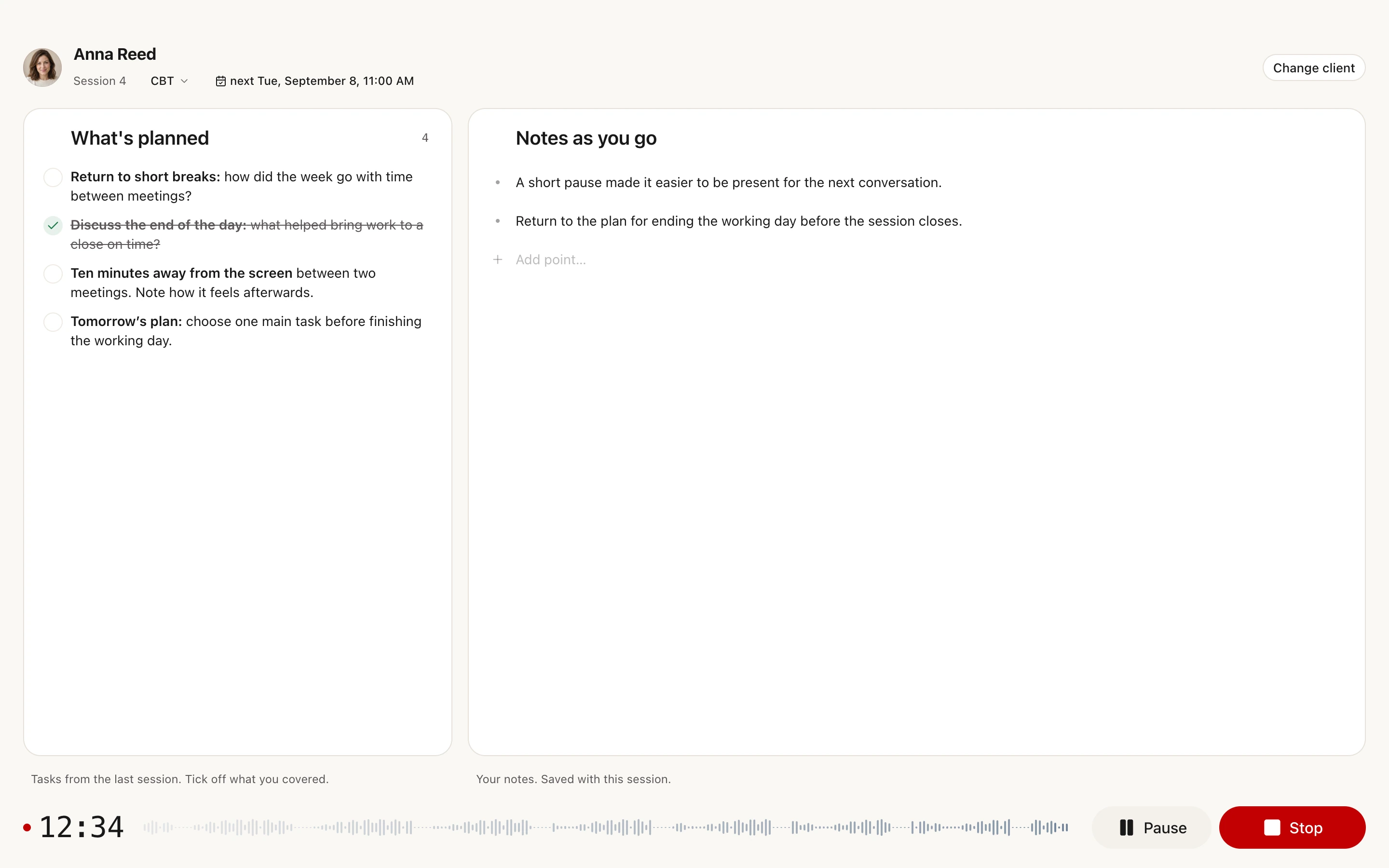
A session with a fictional client. At the top: the client, the session number, the approach and the next appointment. On the left: the plan from the last session. On the right: your notes as you go. At the bottom: the timer, the waveform, Pause and Stop.
In macOS
What to allow
and what each access is for
Sessio asks for access on the first recording. Open Settings → Permissions and press Allow next to an item. If an item has only an Open settings button, or macOS shows no prompt, turn the access on in System Settings → Privacy & Security.
| Access | What it is for |
|---|---|
| Microphone | Records your voice. Needed for any recording. |
| Screen Recording (on first setup: Call audio) | Records the client's voice from Zoom, Google Meet or another app. Required. Sessio takes only the sound, the picture of the screen is not saved. After you turn it on, macOS may ask you to restart Sessio. |
| Accessibility (on first setup, the next screen: Meeting detection) | Lets Sessio notice a call and offer to record it. Optional: recording works without it. You turn the call prompt off with “Detect meetings” in Settings → Preferences. |
| Notifications | Tell you when the summary is ready. Optional. |
How it works
From the button to the recording
in four steps
Recording runs on your Mac. After you stop, uploading and processing continue in the background, and you can keep using the app.
Already have a file? On the client's Files tab, drag in an mp3, m4a or wav, choose "Create session" and set the date. Uploading a file needs neither the microphone nor Screen Recording.
- Start. Press "Start session" in the sidebar, or use search (⌘K), the schedule or the Sessio panel in the menu bar. Choose a client, or start without one and attach it later. When a call starts, the "Call detected" prompt offers the same.
- Record. A small widget with the timer and a waveform stays on top of other apps. Hover over it to pause, resume or stop. The Sessio window shows the plan from the last session and a place for your notes.
- Stop. Press Stop, or answer "Did the call end?" when Sessio asks. The audio is saved and uploaded in the background. If nobody spoke, the recording is deleted instead of showing an error.
- Check the result. The client's session list shows the statuses: audio upload, transcription, preparing the draft, ready. Then the Transcript, the summary and the note open.
Limits
What recording does
and what it does not promise
Recording is a tool on your side of the call. It does not replace telling the client about it.
Does
- Record your microphone and the call audio on a Mac with Apple Silicon.
- Offer to record when a call starts in Zoom, Teams, FaceTime, Webex or a similar app, or when a browser call has the camera on.
- Record an in-person session through the Mac's microphone.
- Pause and resume, start without a client and attach one later.
- Keep the recording on the Mac if the upload fails, so you can upload it again.
Does not promise
- Collect or store the client's consent. Sessio has no consent form and keeps no record of consent. On the first recording with a new client it shows a reminder to tell the client, and the rest is between you and the client.
- Join the call as a participant. The recording is made on your Mac, and Sessio does not announce it to the client. Do that yourself.
- Record outside a Mac with Apple Silicon: recording works only in the Mac app.
- Record a single app. The Mac's whole system sound is recorded except Sessio's own, so other sounds during a call can get into the recording.
- Avoid warnings on an in-person session: a session recorded with the microphone alone may show a warning that the call audio was not recorded.
- Offer the prompt on every call: a browser call without the camera, or a call in a messenger such as Telegram or WhatsApp, does not trigger it. Start those recordings yourself.
- Keep the whole session if access is switched off in the middle: only the part recorded before that is saved.
Checked against Sessio 0.35.0 and the app help, 1 November 2026.
Nearby
After the recording
comes the text
What a recording turns into and where you start it from.
Questions
Session recording: answers
How to start a recording, what to allow in macOS and what to tell the client.
How do I record a therapy session on a Mac?
Install Sessio on a Mac with Apple Silicon, press "Start session" and choose a client. On the first recording allow the Microphone and Call audio, which macOS calls Screen Recording. The microphone records you, the call audio records the client from Zoom, Google Meet or another app. Stop from the widget or the Sessio window.
Which calls does Sessio notice, and can I turn that off?
Sessio offers to record when it notices a call in Zoom, Teams, FaceTime, Webex or similar apps, or a browser call (for example Google Meet) with the camera on. Telegram and WhatsApp do not trigger the prompt. For a call app such as Zoom you can hide it from the prompt's ⋮ menu, but not for browser calls. To turn detection off completely, switch off "Detect meetings" in Settings → Preferences.
Can I record an in-person session?
Yes, through the Mac's microphone: press "Start session" as usual. Sessio still asks for both permissions before any recording, and an in-person session has no call audio. Sessio tells the therapist and client lines apart by itself, and you can fix the roles on the Transcript tab.
What if a client does not want to be recorded?
Then do not record that session: Sessio records only when you start it. Sessio does not collect or store the client's consent and does not join the call, so telling the client is up to you. On the first recording with a new client the app shows a reminder with an example phrase. Rules on recording depend on your country and profession, and Sessio gives no legal advice.
Why can't Sessio hear my client?
Call audio is not allowed yet, which macOS calls Screen Recording. Turn on "Screen Recording" in Settings → Permissions or in System Settings → Privacy & Security, restart Sessio if it asks, and make a short test recording. If your own voice is quiet, check Mic Mode (the green indicator in the menu bar) and choose Standard.
Where does the recording go?
After you stop, the audio is uploaded to your Sessio account and processed in the background, and for transcription it goes to an external speech recognition service. Recordings and notes are stored in the cloud and available through your account. You can delete a session, a client or the account at any time.


Session recording
Start with one session
Install Sessio on a Mac with Apple Silicon, allow the microphone and the call audio, and press Start session. Sessio is free during the beta.