

Transcription
Transcribe therapy sessions
with speaker roles
Transcription in Sessio turns a therapy session into text split by speaker: therapist and client lines, each with its time in the recording. You can search the text, correct a line, jump to that moment in the audio and swap roles. Record on a Mac or upload an mp3, m4a or wav file.
Mac with Apple Silicon. Sessio is free during the beta.
Roles
Therapist and client lines are shown separately, each with its time in the recording.
Search and audio
Find a word with ⌘F and jump to that place in the recording.
Corrections
Fix a word in a line, change the speaker of one line or swap roles across the whole session.
How it looks
The Transcript tab
next to the recording and the note
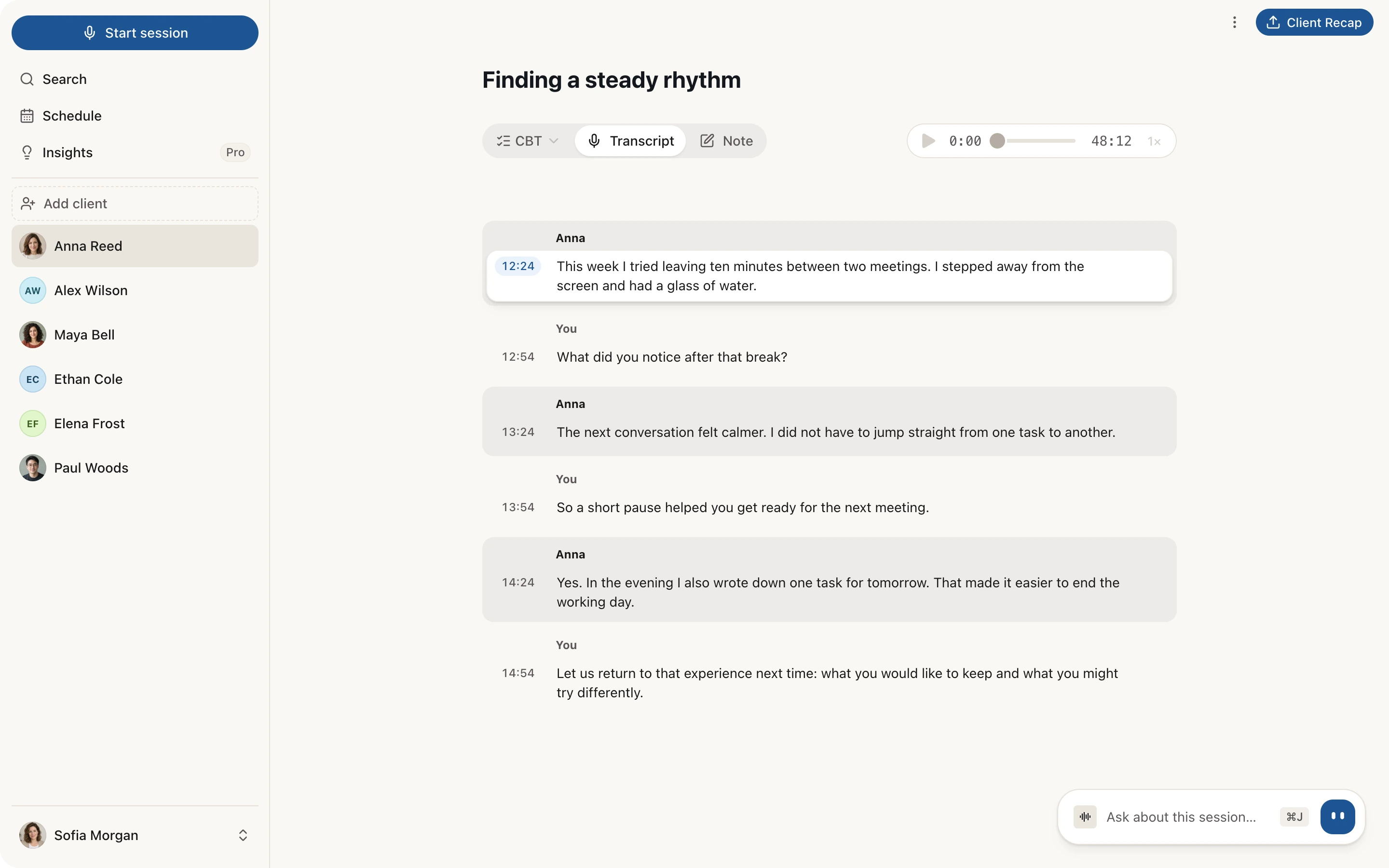
A session with a fictional client. The recording player and the Transcript and Note tabs are at the top, the lines by role with their time are below.
If roles got mixed up
Swap roles
in one click
Sometimes Sessio mixes up who is speaking. Fix it for one line or for the whole session. Try it on the example: here the roles are the wrong way round.
- 12:24You
This week I tried leaving ten minutes between two meetings. I just stepped away from the screen and drank some water.
- 12:54Anna
What did you notice after that break?
- 13:24You
The next conversation went more calmly. I didn't have to switch from one task to another right away.
- 13:54Anna
So a short break helped you get ready for the next meeting.
The roles are the wrong way round: Anna's lines are labelled "You". Press "Swap roles" or "Change" on each line.
How it works
From recording to text
in the background while you work
The transcript is prepared on its own after a recording or an upload. You can keep using the app, the status is shown in the client's session list.
If processing fails, a "Retry" button appears: while the original audio is saved, you can run it again.
- Record or upload. On a Mac, Sessio records your voice through the microphone and the client's voice through the call audio, cleans the speaker echo out and warns you if that does not work. Upload a finished recording (mp3, m4a, wav) on the client's Files tab.
- Transcript in the background. The session list shows the statuses: audio upload, transcription, preparing the draft, ready.
- Check. Open the Transcript tab, check the roles and fix the words that were recognised wrongly.
- Summary and note. They are built on the transcript, and Summary items with a source icon lead to the line they are based on.
Limits
What transcription does
and what it does not promise
A transcript is a working text for you to check, not a verbatim record.
Does
- Separate therapist and client lines and put a time on each.
- Search the text (⌘F) and open the right place in the recording.
- Let you edit a line's text and change its speaker.
- Work with a Sessio recording on a Mac and with an uploaded mp3, m4a or wav file.
- Give a basis for the Summary and the note, in the session language unless you choose another.
Does not promise
- Accuracy without errors: check important places against the audio.
- The same quality in every language: the interface has seven languages, but speech recognition works differently in different languages.
- Keeping manual edits in the note when it is prepared again: after swapping roles the note may be prepared anew.
- Working offline: the audio is sent to a speech recognition service.
Checked against Sessio 0.35.0 and the app help, 1 November 2026.
Nearby
Transcription
is the start of a client's story
What comes before the text and what is built from it.
Questions
Session transcription: answers
How to get the text of a session, which languages it works in and what to do if roles got mixed up.
How do I transcribe a therapy session recording?
Record the session in Sessio on a Mac, or upload a finished file (mp3, m4a, wav) on the client's Files tab, choose "Create session" and set the date. The transcript is prepared in the background and then opens in the Transcript tab.
Which languages does transcription work in?
Transcription works in the language of the session: in Settings → Preferences, "Transcription language" is set to "Multi-language" by default, so Sessio detects the language itself, and you can pick a specific one from the list. The Summary and the note are written in the session language unless you choose another in "Summary language". Recognition quality differs between languages, so check the first sessions against the audio.
What if Sessio mixed up who is speaking?
Open the Transcript tab. If one line is wrong, press "Change speaker". If the roles are mixed up across the whole session, press "Swap roles": pressing it again restores the previous order. Then Sessio offers to prepare the note again. That can replace manual edits, so copy important text beforehand.
Is this an accurate verbatim record?
No. A transcript is a working text: it may contain errors, especially with poor audio. Correct the words in the lines and check important places against the recording.
Where does the audio go?
For transcription the audio is sent to a speech recognition service, and for notes the text is processed by external services. Recordings and notes are stored in the cloud and available through your account. The services are listed in the privacy policy.


Transcription
Start with one recording
Install Sessio on a Mac with Apple Silicon, record a session or upload a finished file. Sessio is free during the beta.