

Schedule
Therapist scheduling software
with recurring sessions and Meet or Zoom links
The Sessio schedule shows a therapist's appointments as an agenda, a week or a month. Make an appointment recurring, add a Google Meet or Zoom link, and start recording from the appointment on the day. You can subscribe to the schedule in Google or Apple Calendar, where it is read-only.
Mac with Apple Silicon. Sessio is free during the beta.
Agenda, Week, Month
Three views, a Today button and a grid step you set yourself.
Recurring sessions
Weekly, every 2 weeks, monthly, yearly or a custom rule. Cancel one appointment or this and all following.
Meet or Zoom link
Connect the service once, then create the link from the appointment.
How it looks
A week in the schedule
with repeats and gaps between appointments
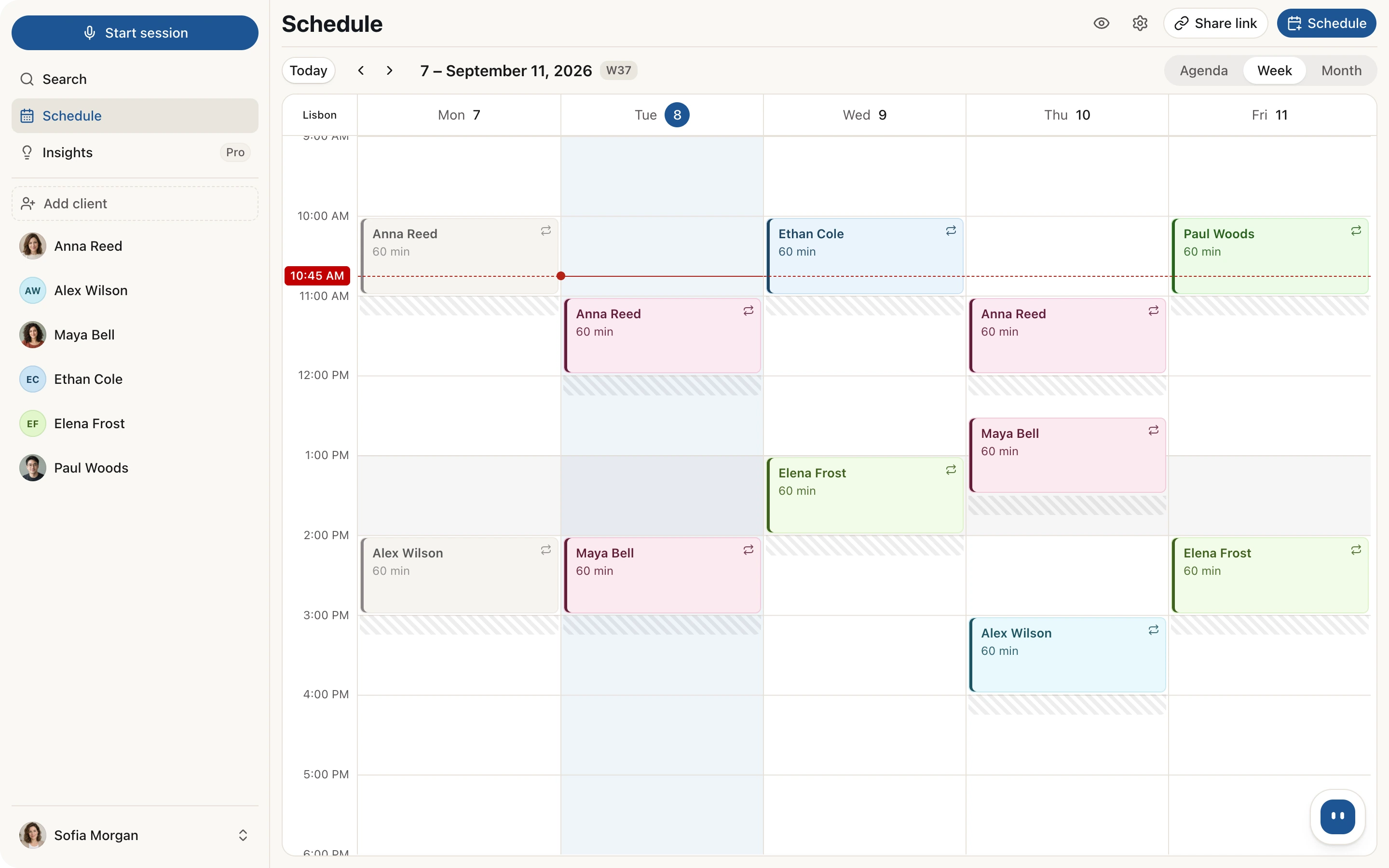
A week with fictional clients. At the top are Share link, Schedule and the Agenda, Week, Month switch. Appointments carry a repeat icon, and the hatched gaps after them are the buffer between sessions.
Sessio and your calendar
What shows up in Google or Apple Calendar
and what does not
The subscription works one way: Sessio shows its schedule in your calendar and does not read your calendar back. There is no two-way sync.
| You do this | In Google or Apple Calendar |
|---|---|
| Schedule or move an appointment in Sessio | It appears through the subscription, sometimes only after a few hours. |
| Cancel an appointment in Sessio | It disappears from the subscribed calendar at the next refresh. |
| Add or edit an event in Google or Apple Calendar | Nothing comes back to Sessio. It only adds its own appointments and never reads or changes your other events. |
| Block time, or a request is waiting for your answer | Neither is shown: only confirmed appointments appear. |
| Choose how the client appears | The event title can show the full name, initials or just "Session". |
| Create a Google Meet link | Sessio creates the Meet link. Nothing is added to your Google Calendar. |
How it works
From a new appointment
to a recording
An appointment is tied to a client, so on the day you start recording from it, and later you open that session.
If the link is not created, connect the service again in Settings → Integrations and try once more.
- Schedule. Click "Schedule" or pick a free slot in the grid. Choose a client, a date and a time, and turn on "Repeat" if needed.
- Add a link. Connect Google Meet or Zoom in Settings → Integrations: before connecting, Sessio shows the account and asks you to confirm. Then press the camera icon next to the video link and choose the service.
- Start the session. On the day, the appointment shows "Start session": it starts recording for that client and, if there is a link, opens the call too. A future online appointment has "Join call".
- Come back to it. Open a past appointment with "Open": Sessio shows the session recorded with that client that day, or the client's card if there is none.
Limits
What the schedule does
and what it does not
It is your working schedule, not a reminder system for clients.
Does
- Show appointments as an agenda, a week and a month, with a grid step of your choice.
- Repeat appointments: weekly, every 2 weeks, monthly, yearly or by a custom rule.
- Cancel one appointment or this and all following ones, and bring a cancelled one back with "Rebook".
- Keep your working hours, time off, holidays, time blocks and a buffer between sessions.
- Create a Google Meet or Zoom link from the appointment.
- Show the schedule in Google and Apple Calendar by subscription, read-only.
- Hide client names with one button when you share your screen.
Does not
- Two-way sync: edits in Google or Apple Calendar do not come back, and Sessio does not read your other events.
- Buttons for other calendars: the "Sync" tab has only Apple Calendar and Google Calendar.
- An instant update in your calendar: new appointments appear there with a delay, sometimes a few hours.
- Reminders or SMS to clients: the schedule does not send them. Emails to the client go out from online booking.
Checked against Sessio 0.35.0 and the app help, 1 November 2026.
Nearby
The schedule
is where a session begins
Where requests come from and what happens after the appointment.
- Online bookingA page where the client picks a free time and you confirm the request in your schedule.Read more
- Session recordingHow Sessio records your voice and the call audio, a recording you can start from an appointment.Read more
- Session prep and client recapA reminder of the last session before the next one, and a recap for the client.Read more
Questions
Therapist schedule: answers
How to set up recurring appointments, Meet and Zoom links, and what the Google and Apple Calendar subscription does.
How do I set up recurring appointments in a therapist schedule?
Click "Schedule", choose a client, a date and a time and turn on "Repeat": weekly, every 2 weeks, monthly, yearly or a custom rule. When you change or cancel such an appointment, Sessio asks what to affect: only this event or this and all following events.
How do I add a Google Meet or Zoom link to an appointment?
Connect the service in Settings → Integrations: Sessio shows the account and asks you to confirm first. Then, in an online appointment, press the camera icon next to the video link and choose Google Meet or Zoom. For Meet, nothing is added to your Google Calendar.
How do I show my Sessio schedule in Google Calendar or Apple Calendar?
Open the scheduling settings, the Sync tab, press "Turn on calendar sync" the first time, then "Add to Google Calendar" or "Add to Apple Calendar" and confirm the subscription in your calendar app. It is a one-way subscription: Sessio appointments appear there read-only.
Does Sessio sync with Google Calendar both ways?
No. Sessio only shows its schedule in Google or Apple Calendar through a subscription link, and does not read or change events in your calendar. A new appointment can take a few hours to appear.
What does the client see in my schedule?
The schedule is not shown to clients. If you turn on online booking, a client sees only free times on the booking page and sends a request, and you confirm it in your schedule. The schedule does not send clients reminders or SMS; emails to the client go out from online booking.
Who can see my calendar subscription link?
Anyone who has the link sees your whole schedule, so do not share it. If it ends up in the wrong place, press "Replace link": the old one stops working. The event title can show the full name, initials or nothing.


Schedule
Start with one appointment
Install Sessio on a Mac with Apple Silicon, schedule an appointment with a client and add a Meet or Zoom link. Sessio is free during the beta.